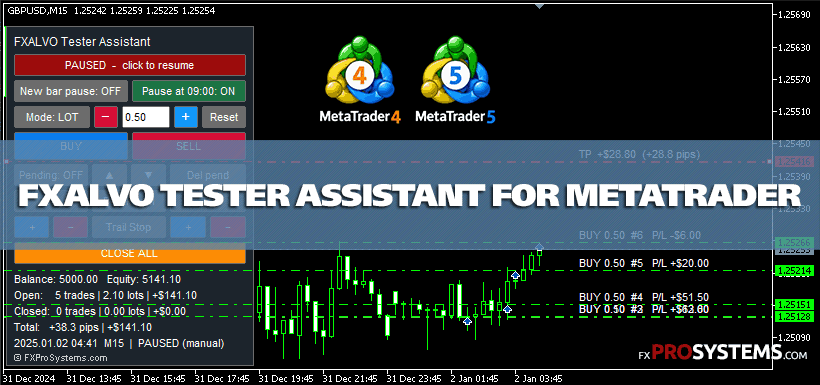
FXALVO Tester Assistant — a free trading panel for manual backtesting in MT4 and MT5
I'll be honest: this article is about two years late. Back in September 2023, when I published the Gold Sniper Master Indicator review, readers started asking about the trading panel on the left side of my video. I promised to write about it "in the next posts." A few months later I promised again. The questions kept coming — around ten of them by now. The panel in that video was TSTester, a free Expert Advisor from RoboForex, and it does its job well. There's just one catch for most of you: all of its settings are in Russian. So instead of explaining a Russian settings window to an English-speaking audience, I built a new assistant from scratch — with an English interface and with versions for both MT4 and MT5. Here it is.
Characteristics of the FXALVO Tester Assistant EA v1.06
- Type: trading panel (Expert Advisor) for manual trading in the Strategy Tester
- Platform: Metatrader4 | Metatrader5
- EA version: 1.06
- Currency pair: Any
- Works in: Strategy Tester, visual mode
- Interface language: English
- Price: Free
- Developer: FXProSystems.com
Why test a manual system on history at all?
Most of the systems on this site are manual. You look at arrows, dots, zones and sessions, and you make the decision yourself. The problem is testing them. An Expert Advisor can be run through ten years of history in a few minutes. A manual system can't — somebody has to look at every signal and press the button.
Forward testing on a demo account is the honest way, but it takes weeks. One London session a day, maybe two signals, and after a month you still don't have enough trades to say anything.
The Strategy Tester in visual mode solves the time problem: you can replay months of history in one evening. But it has a limitation that makes manual trading almost impossible. When you press the tester's own pause button, everything freezes — including your EA. You can look at the chart, but you can't open a trade. That's the gap this assistant fills.
How FXALVO Tester Assistant works
The panel sits in the top left corner of the chart. From top to bottom:
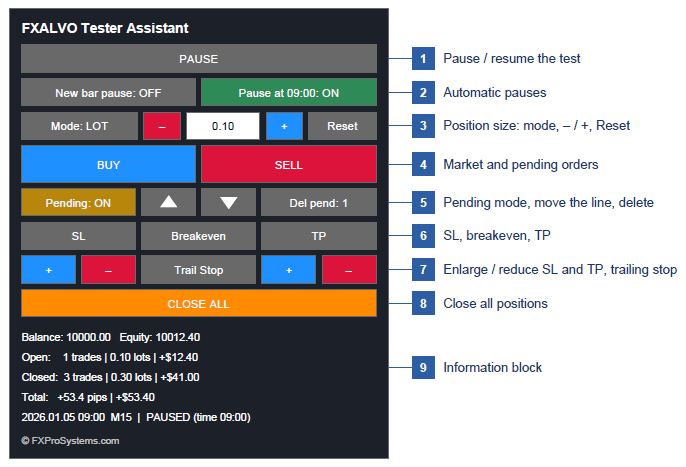
PAUSE [1]. This is the heart of the tool. When you click it, the assistant stops the test from inside the EA. Unlike the tester's own pause, the panel keeps working: you can open a trade, move a stop loss or close everything while the chart stands still. Click the button again, and the test continues.
New bar pause | Pause at 09:00 [2]. Two automatic pauses. The first stops the test on every new candle, which is handy on higher timeframes when you want to judge each bar. The second stops the test once a day at the time you set in the settings (server time). I use it to jump straight to the start of the London session instead of scrolling through the Asian range every single day. Both switch on and off with one click.
Mode: LOT | RISK % [3]. In LOT mode you trade a fixed lot. In RISK % mode, the assistant places the stop loss 10 pips from the entry (adjustable) and calculates the lot so that hitting that stop costs exactly the chosen percentage of your balance. The field shows the current value. Change it with the red − and the blue +: they step through a ready-made scale — 0.01, 0.02, 0.03, 0.05, 0.10, 0.20, 0.30, 0.50, 1, 2, 3, 5, 10 lots, or 0.25, 0.5, 1, 1.5, 2, 3, 4, 5% of the balance. From 0.10 to 0.50 is two clicks. Reset returns the starting value from the settings, and the starting values themselves can be anything you like. Why buttons instead of typing? The MT5 visual tester doesn't pass typed text to an Expert Advisor, and I wanted the panel to work the same way in both platforms.
BUY | SELL [4]. Market orders at the current tester price. There is a small protection against accidental double clicks: a second order within half a second is ignored.
Pending: ON/OFF | ▲ ▼ | Del pend [5]. Pending orders, the way I actually trade breakouts. Switch Pending on, and a yellow dashed line appears 20 pips above the price. Move it with ▲ and ▼ (5 pips per click; in MT4 you can also drag it) to the level you want. Now the BUY and SELL buttons change their captions and place a pending order at the line instead of a market order. You don't have to think about which type you need — the assistant picks it from where the line is. Line above the price: BUY becomes BUY STOP, SELL becomes SELL LIMIT. Line below the price: BUY LIMIT and SELL STOP. The label on the line shows both options before you click. A placed order gets its own orange dash-dot line. When the price reaches it, the order turns into a normal position with the usual green entry line — the stop loss and take profit you set stay where they were. Del pend deletes all pending orders and shows how many are waiting.
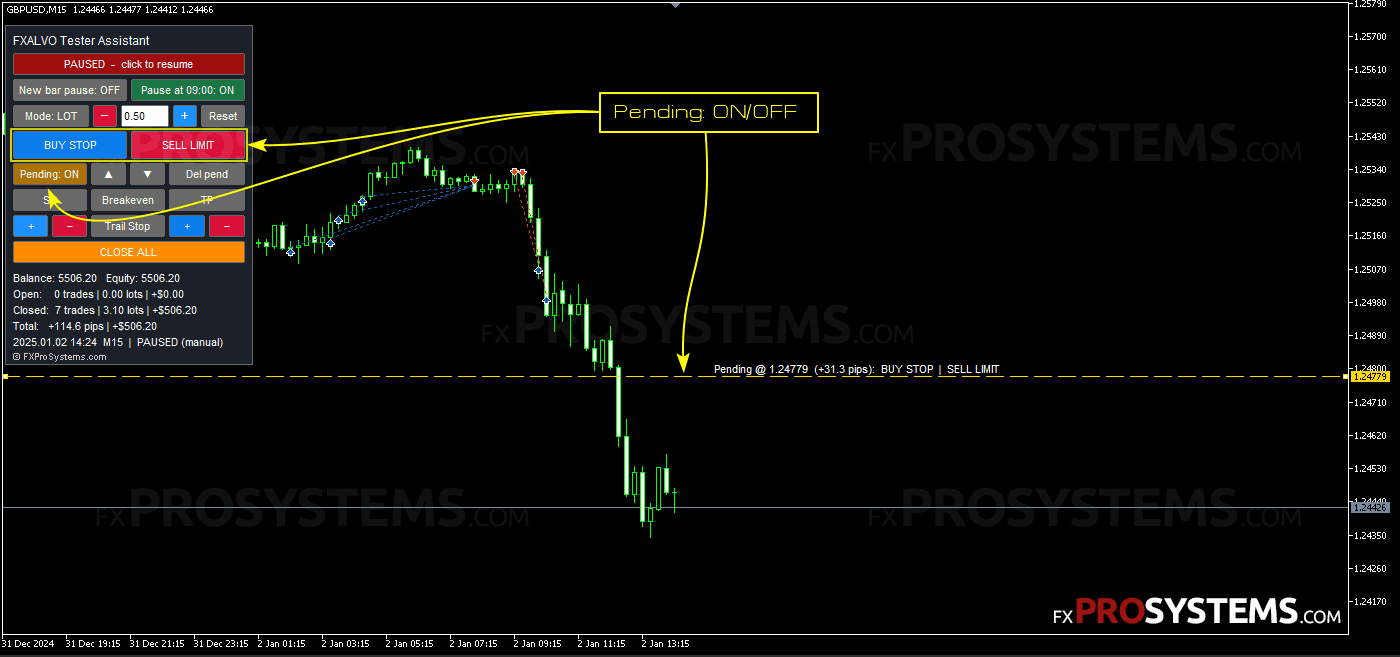
SL | Breakeven | TP [6]. SL and TP add a line to every open position that doesn't have one yet, 10 pips from the current price. They work for pending orders too — there the 10 pips are counted from the order's price. Breakeven moves the stop loss to the entry price — but only for positions that are already far enough in profit for the broker to accept it.
+ and − under SL and TP [6]. The blue "+" makes the stop loss (or take profit) larger — 5 pips further from the entry per click. The red "−" makes it smaller. In MT4 you can also simply drag the lines; in MT5 these buttons are the only way, and I'll explain why below.
Trail Stop [7]. Switches the trailing stop on and off. It keeps the stop at the distance you chose yourself: if your stop was 25 pips away when you switched trailing on, it follows the price at 25 pips. Widen it with "+" or tighten it with "−", and trailing continues at the new distance. The stop only moves towards the price, never back. A stop that retreats when the price comes at it isn't a stop at all.
CLOSE ALL [8]. Closes every position the assistant opened on this chart and deletes its pending orders.
Below the buttons there is an information block [9]: balance and equity, open trades (count, lots, profit), closed trades, the total result in pips and dollars, and the current test time with the pause status.
Lines on the chart
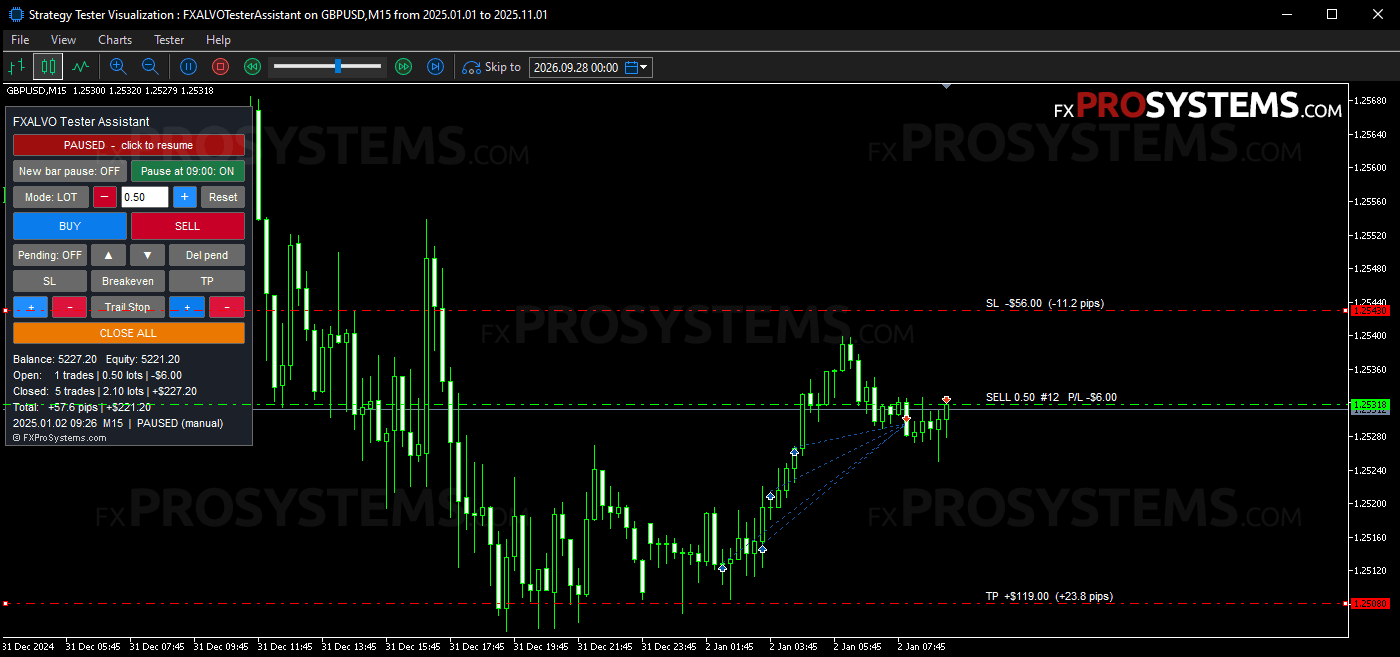
Every position gets a green dash-dot line at the Entry price with its live profit. Stop Loss and Take Profit get red dash-dot lines with a label that shows what you would win or lose at that level, in dollars and in pips.
The lines can be dragged. The assistant applies the new level about a third of a second after you let go — not while you're still moving the mouse. If the level is too close to the price and the tester rejects it, the line jumps back to its last valid position, and the Journal tab tells you why. If a line doesn't move, double-click it first: in MetaTrader that's how an object gets selected.
In MT5 the lines can't be dragged at all. That's not the assistant — the MT5 visual tester simply doesn't let you move objects with the mouse. MT5 users have been asking MetaQuotes for this since 2018. Buttons, on the other hand, work fine in the MT5 tester — that's why the + and − buttons exist.
One thing I noticed during the first test runs: after I moved a stop loss, it looked like a second order had appeared on the chart. It hadn't. MetaTrader was drawing its own trade level lines on top of mine. The assistant now switches those native lines off while it's running and puts your setting back when you remove it.
Putting it into practice
Here's how a typical evening with the assistant looks, using the Gold Sniper Master system as an example.
- Install the indicators of the system and load its template on an AUDNZD M15 chart. Save the template as tester.tpl — the Strategy Tester applies a template with that name to the visual chart automatically.
- Open the Strategy Tester, choose FXALVO Tester Assistant, the symbol, M15, and tick Visual mode.
- In the settings, set Pause at to the start of the London session on your broker's server time. Brokers use different server time zones, so check yours first.
- Start the test. At the pause, look at the signals. No clean setup? Click PAUSE and let the day play out.
- A setup appears. Switch to RISK % mode, keep 1–2%, click BUY or SELL. The stop loss is placed automatically, and the lot is already sized for your risk.
- Click TP and drag the line to the channel bound, the way I did in the Gold Sniper video (in MT5, move it with + and −).
- Once the trade is comfortably in profit, click Breakeven.
- After twenty or thirty trades, look at the Total line of the info block. That's your first honest answer to the question "does this system work for me?"
What it can't do (yet)
I'd rather you hear this from me than find it out in the middle of a test.
- The pause keeps one CPU core busy. The MT4 tester ignores the usual "wait" command inside an EA, so the assistant has to keep checking the buttons in a loop. Your fan may spin up during long pauses. It's normal.
- Pause works only in visual mode. In a normal (non-visual) test there's nothing to look at, so the assistant simply doesn't pause.
- One chart, one symbol. That's a limitation of the Strategy Tester itself, not of the assistant.
- MT5 netting accounts. If your MT5 tester account uses netting, a second BUY doesn't open a second position — it adds to the existing one. On hedging accounts every click opens a separate position. The assistant writes the account mode into the Journal at start.
- What a "pip" is. On 5- and 3-digit symbols and on gold quoted with 2 decimals (like 2634.46) the assistant counts 10 points as one pip, so 10 pips on gold is $1.00. On indices and other CFDs brokers quote prices differently: check the SL distance on your first trade, and if it's off, set PipSizePoints yourself. If an automatic SL or TP would be closer to the price than the broker allows, the assistant moves it to the nearest allowed level and says so in the Journal.
- No dragging in MT5. In the MT5 visual tester the SL and TP lines are moved with the + and − buttons, one step at a time. It's slower than dragging, but it works.
- Pending orders in MT5 can't be moved once placed. In MT4 you drag the orange line and the order follows, together with its SL and TP. In MT5 the tester doesn't allow dragging, so to move a pending order you delete it with Del pend, move the yellow line and place it again. Stop loss and take profit of a pending order can still be changed with + and −.
- No expiry for pending orders. They stay until they trigger or you delete them.
- A cosmetic one: after a click, a button may look pressed until the next click. It doesn't affect anything.
To be fair to the tester as a whole: history with a pause button is not live trading. There's no spread widening at news, no slippage worth mentioning, and, most importantly, no fear. Results in the tester are the best case, not the typical one.
Input parameters
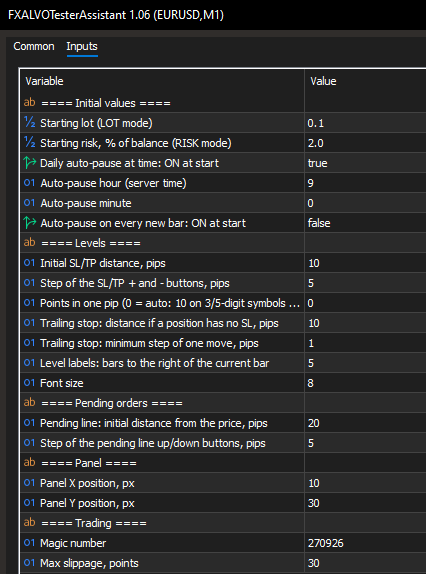
Initial values
- StartLot — starting lot for LOT mode (0.10)
- StartRiskPercent — starting risk for RISK % mode, % of balance (2.0)
- AutoPauseAtTime — daily auto-pause switched on at start (true)
- AutoPauseHour / AutoPauseMinute — time of the daily auto-pause, server time (09:00)
- AutoPauseNewBar — pause on every new bar switched on at start (false)
Levels
- LevelDistancePips — distance for the automatic SL and TP, pips (10)
- LevelStepPips — step of the + and − buttons, pips (5)
- PipSizePoints — points in one pip; 0 means automatic (0)
- TrailDistancePips — trailing distance for a position without a stop loss, pips (10)
- TrailStepPips — minimum move of the trailing stop, pips (1)
- LabelOffsetBars — how far to the right of the current bar the line labels are shown (5)
- FontSize — font size of the panel and labels (8)
Pending orders
- PendingDistancePips — where the yellow line appears when you switch Pending on, pips from the price (20)
- PendingStepPips — step of the ▲ and ▼ buttons, pips (5)
Panel
- PanelX / PanelY — panel position on the chart, pixels (10 / 30)
Trading
- MagicNumber — identifies the assistant's trades (270926)
- SlippagePoints — maximum slippage, points (30)
The two settings that matter most are StartRiskPercent and LevelDistancePips — together they decide how much every trade can cost you.
How to install
The archive already mirrors the MetaTrader folder structure. In your terminal, open File → Open Data Folder and copy the MQL4 folder (for MT4) or the MQL5 folder (for MT5) from the archive into it. Restart the terminal or right-click Expert Advisors in the Navigator and choose Refresh. The assistant then appears in the Strategy Tester list.
The full manual in PDF is included in the archive.
Conclusion
This is not a trading system. It won't find signals for you, and it won't make a bad strategy good. What it does is give you back the evenings you would otherwise spend waiting for a demo account to produce enough trades.
Would I use it before putting money into a manual system? Yes — that's exactly why I built it. Would I trust the tester results blindly? No. They're the first filter, not the last word.
- Test the system on history first, then on a demo account, and only then on a real one.
- Use RISK % mode and keep the risk at 1–2% per trade — also in the tester, so your results mean something.
- Write down every result, or at least the Total line after each session.
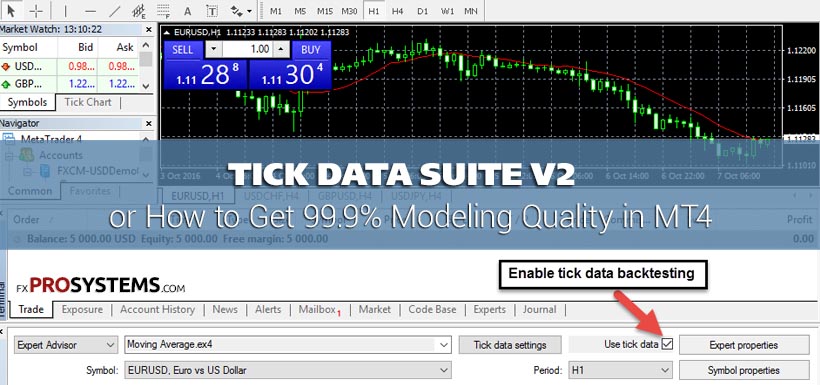
- Use good tick data: the quality of the history decides the quality of the test. See how to get 99% modeling quality in MT4 for free.
- Remember that the tester has no emotions. You will.
Download
In the archive FXALVOTesterAssistant.rar (1.33 Mb):
- FXALVOTesterAssistant.ex4
- FXALVOTesterAssistant.ex5
- FXALVO_Tester_Assistant_Manual.pdf
Free Download FXALVO Tester Assistant MT4 + MT5